

My Web Clipper Prompt
My Web Clipper Prompt
We're thrilled to have you with us!
Below, you'll find my prompt for the Obsidian Web Clipper Interpreter, plus a quick setup guide so you can be processing articles in minutes. Again, this is an additional and optional layer that you can apply to your clippings whenever you'd like.
The prompt generates three layers above any article you clip: a plain text summary, the headlines, and things, a list of key people, terms, and ideas that are mentioned in the clipping.
Let's get you set up.
Step 1
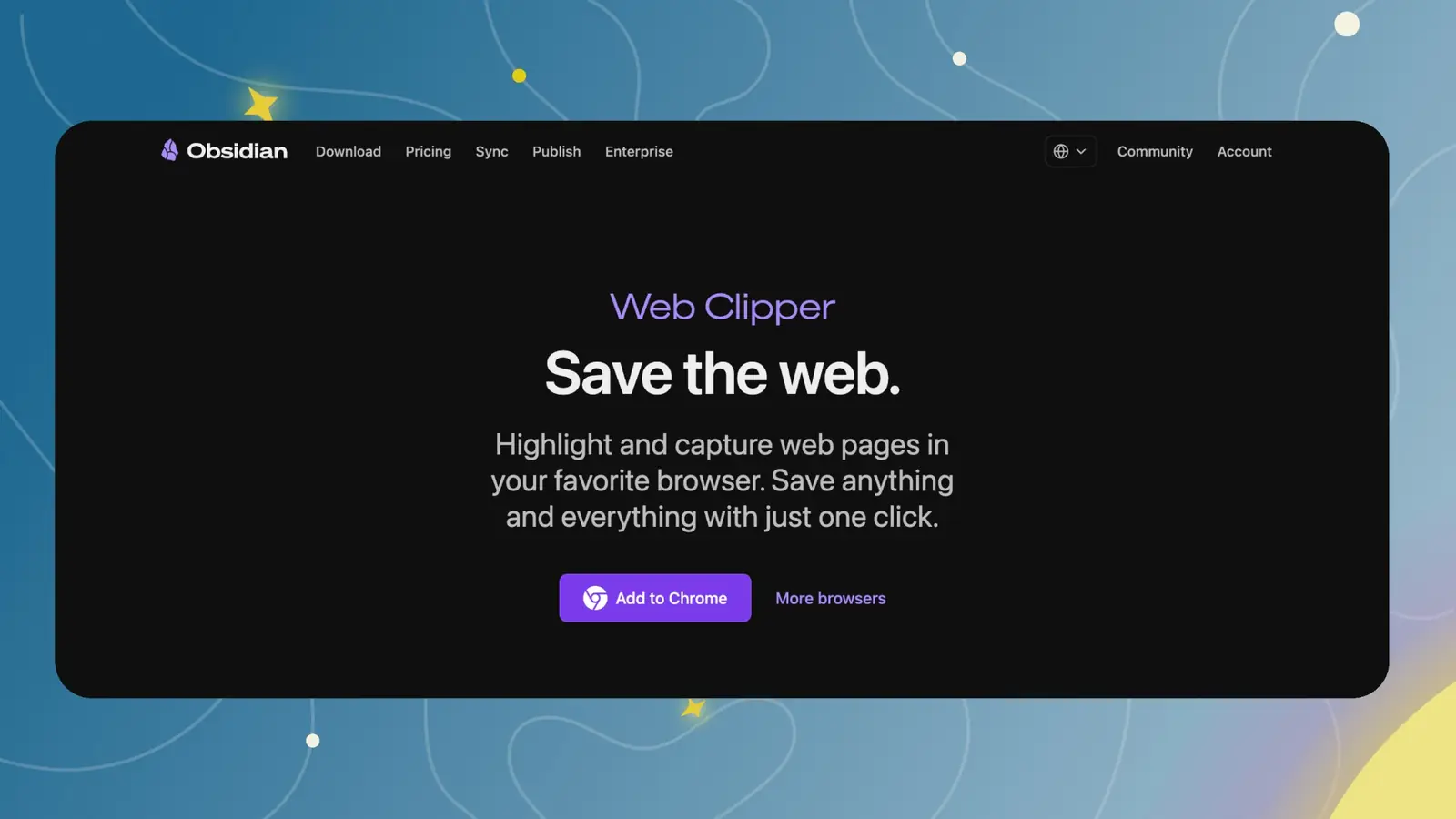
Install the Obsidian Web Clipper
It's a browser extension, so it works in all the major browsers. Search for the Obsidian Web Clipper in your browser's extension store and install it.
Step 2
Open the Interpreter settings
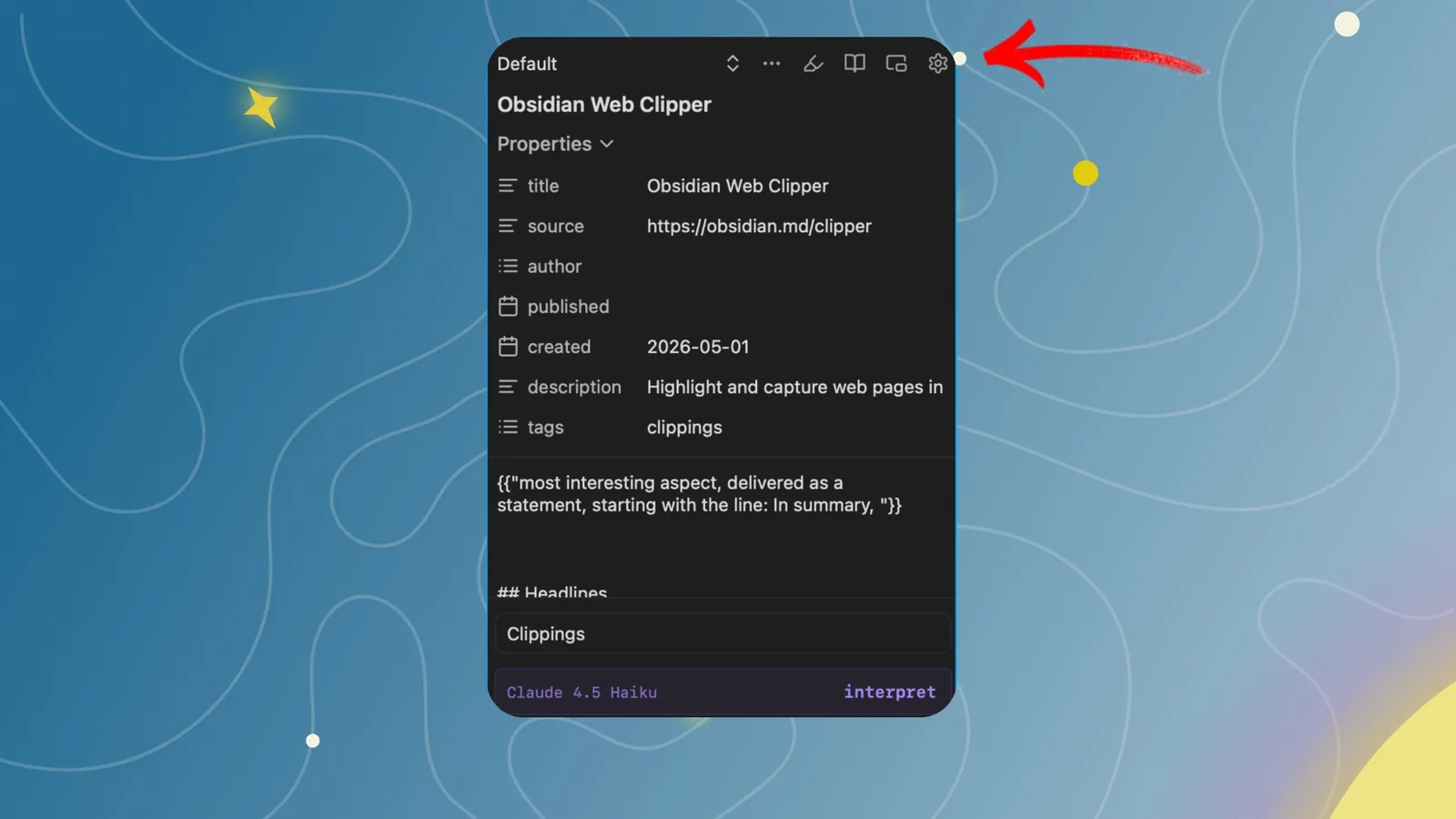
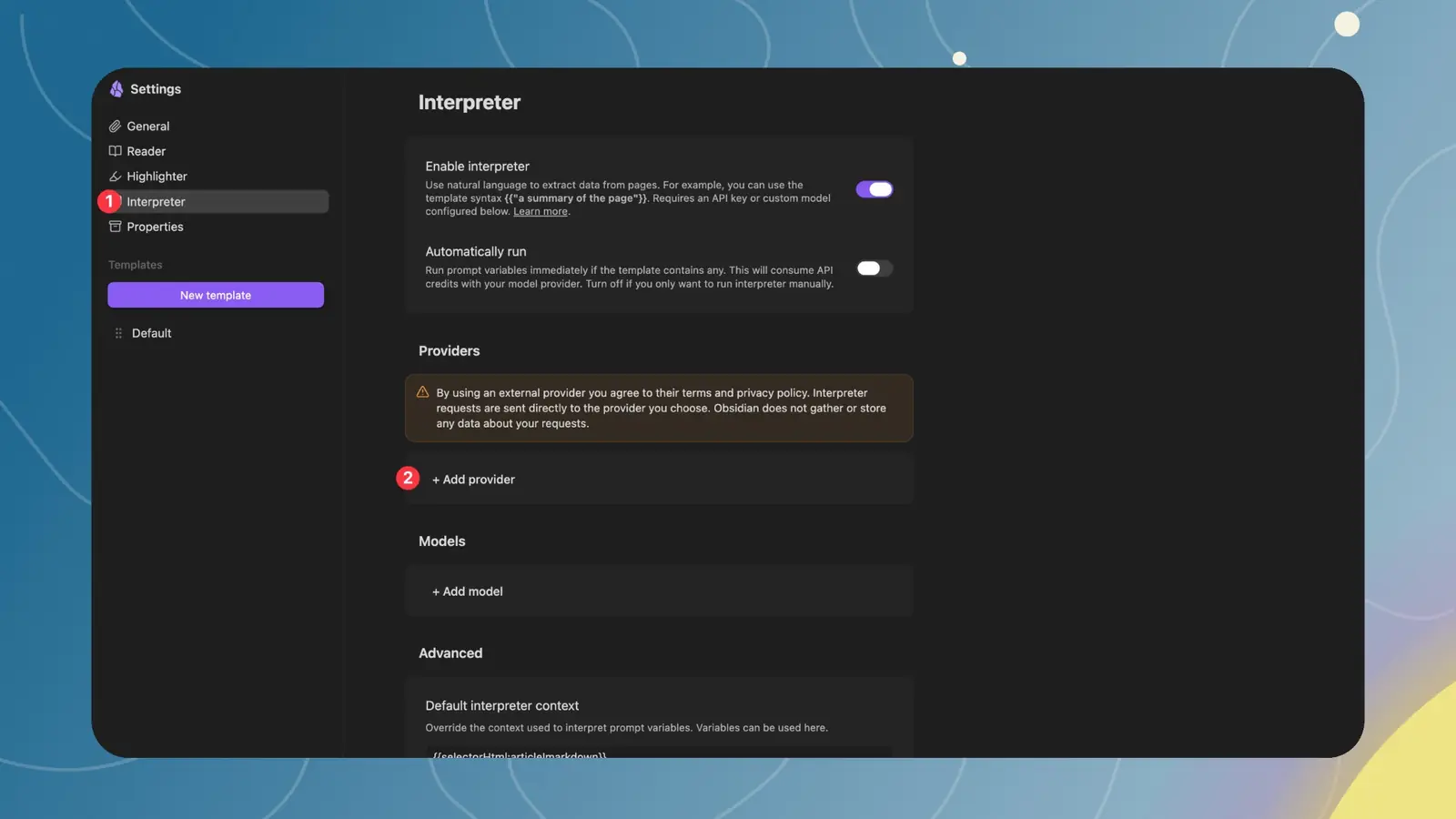
Click the Obsidian icon in your browser, then click the gear icon. From there, go to interpreter. Make sure to enable interpreter that this is toggled on.
Step 3
Add your AI provider
Add your provider of choice. After that, you can select your model.
Obsidian Web Clipper is completely model agnostic. It doesn't care what you use. You can use Claude, GPT, Gemini, DeepSeek, or local models through Ollama and a lot more. If a better model comes out tomorrow, you just switch.
Tip: For the smoothest experience, start with Claude. Most providers will need billing set up to get an API key and some may need extra configuration or some troubleshooting. Going local with Ollama is free, but heavier web pages can be hit-or-miss depending on your computer's specs.
Step 4
Open or Create a Template
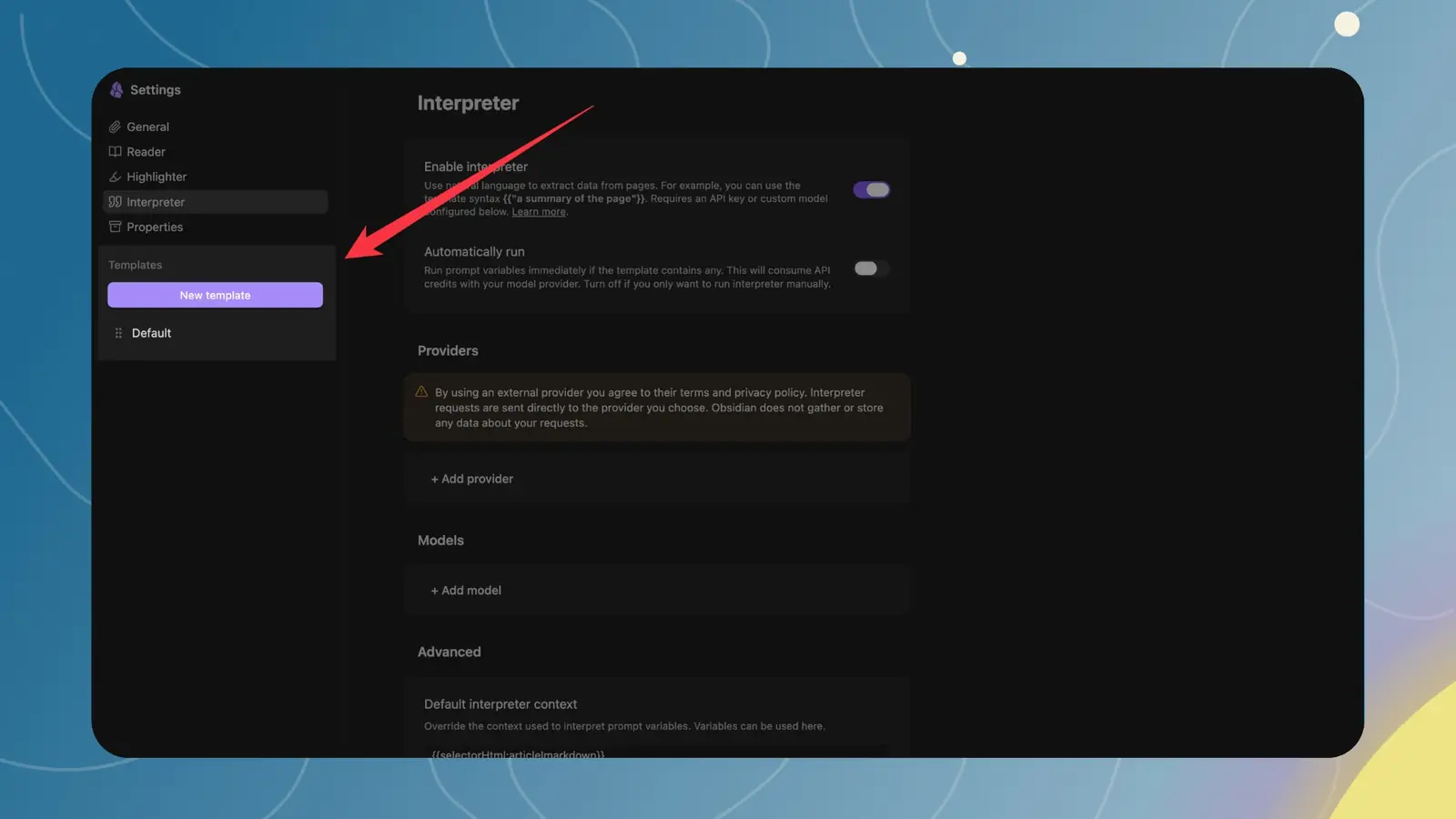
Go to the Templates section in Web Clipper settings. Select an existing template to edit, or click New template.
Step 5
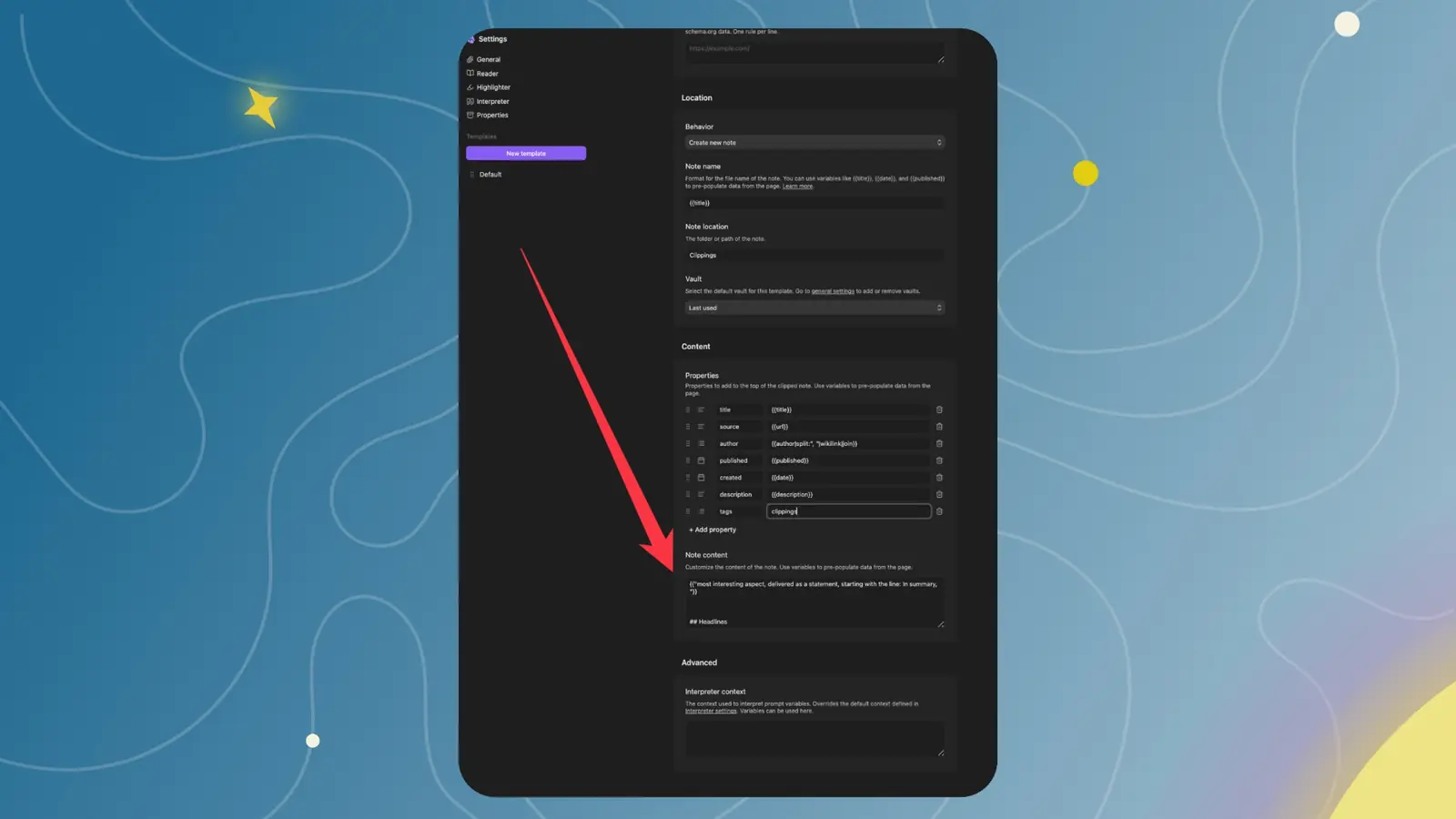
In the template’s note content area, paste the following exactly as-is:
What’s happening here:
The double curly braces {{"..."}} trigger the Interpreter.
Each one is treated as a separate AI prompt that runs against the page content when you clip.
Step 6
(Optional) Improve Speed and Cost
- You can limit how much content is sent to the AI to make processing faster and cheaper.
- If you’re comfortable experimenting, you can adjust the Interpreter context field.
- If you’re unsure, skip this step for now and use the default setup first.
Step 7
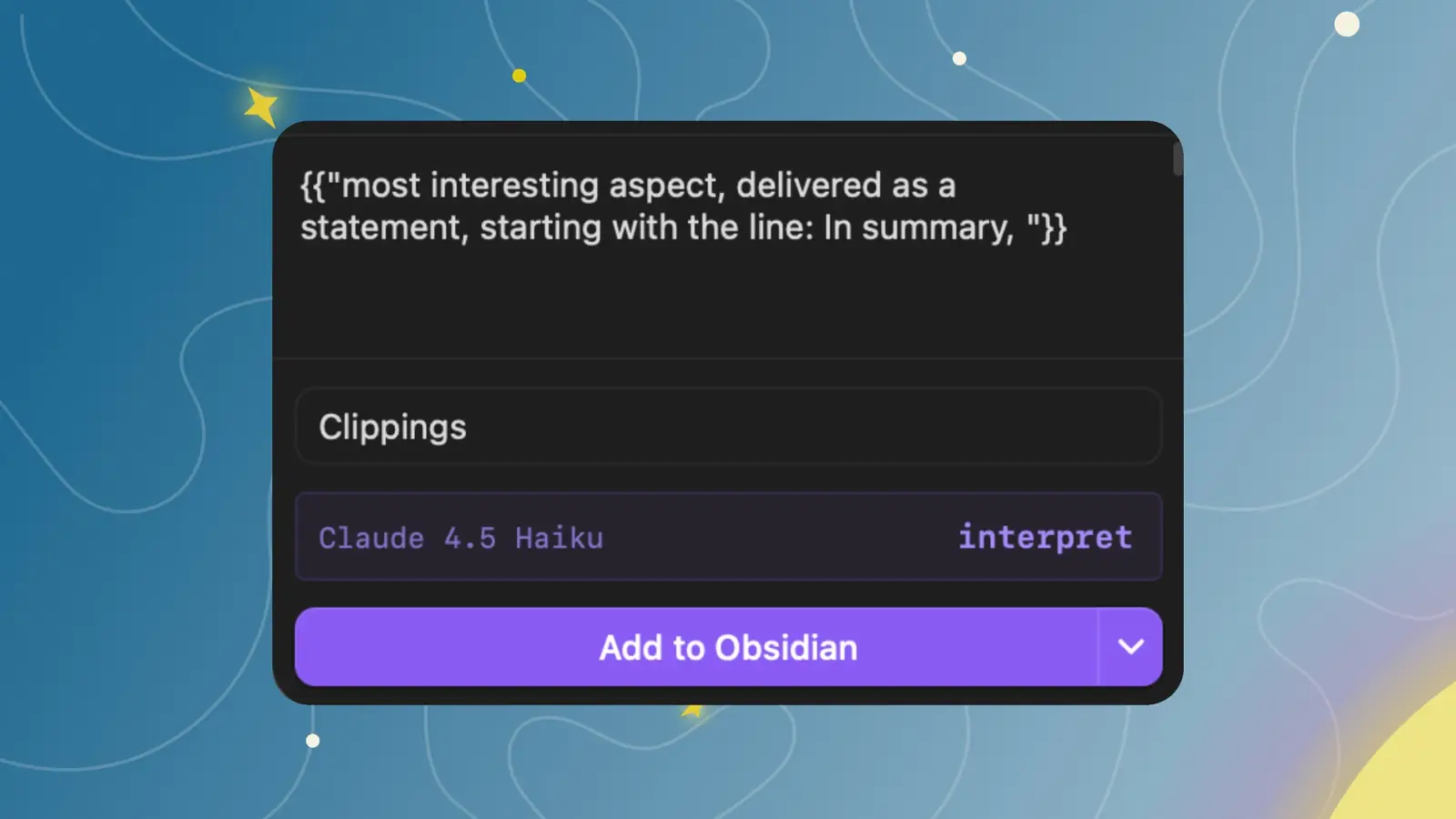
Clip a Page Using This Template
- Open any webpage you want to clip.
- Click the Obsidian Web Clipper icon.
- Select your template.
You’ll now see an Interpreter section.
- Click Interpret.
- Wait a few seconds (depending on the model and page length).
- Once complete, click Add to Obsidian.
Learn About the Knowledge Accelerator™
- Build your custom knowledge system (that lasts you a lifetime).
- Unlock your creativity and share your unique voice.
- Learn the knowledging skills of the modern age.
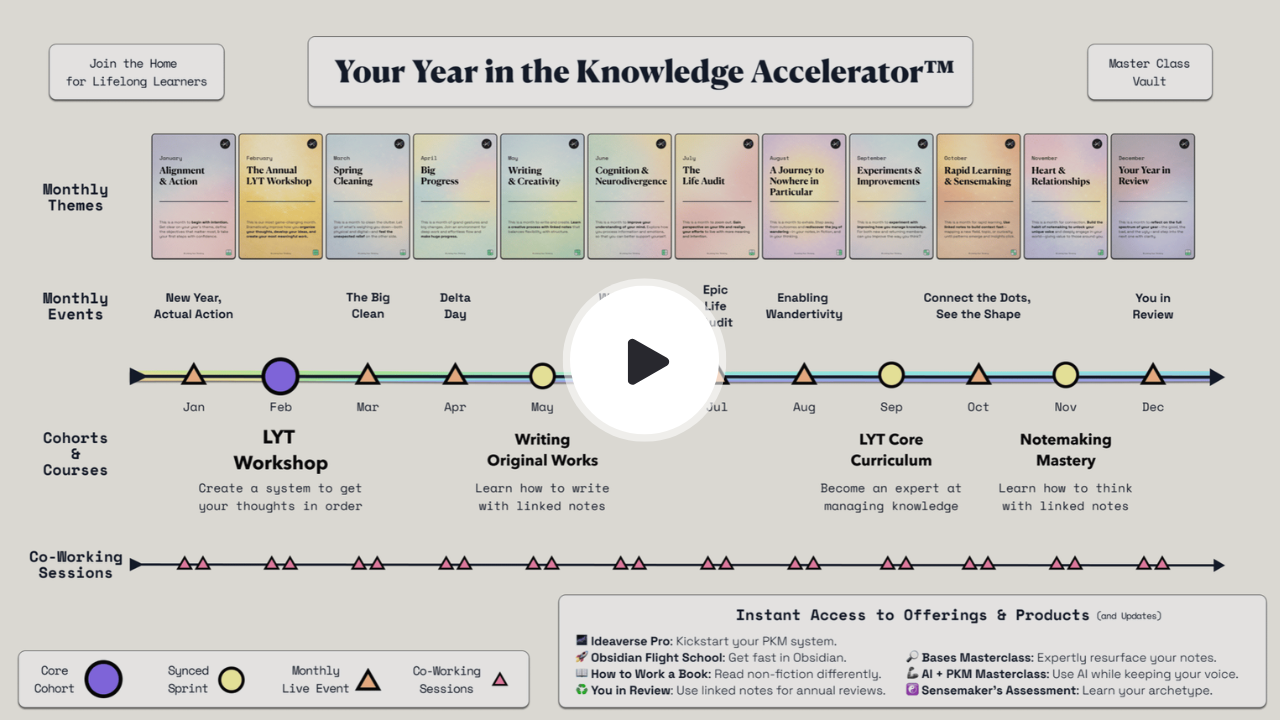
- Improve your learning, thinking, and writing.
- Use proven methods to support and accelerate your most important work.
- Get direct answers and be surrounded by compelling peers.